rovr includes a powerful preview sidebar that can display the contents of various filetypes.
16:36:37
rovr
+
╭
─
Options
────────────────────────────────────────────────────────────────────────────────────────────────────────────────────────────────────
╮
│
│
│
──────────────────────────────────────────────────────────────────────────────────────────────────────────────────────────────────────────────
│
│
│
C:/Users/notso/Git/NSPC911/rovr/
│
╰
──────────────────────────────────────────────────────────────────────────────────────────────────────────────────────────────────────────────
╯
╭
─
Sidebar
─────
╮
╭
─
Files
─────────────────────────────────────────────────────────────────────
╮
╭
─
File Preview
───────────────────────────────
╮
│
Search
│
│
() Search something...
│
│
1
# rovr - Agent Guidelines
│
│
Home
│
│
docs
│
│
2
│
│
Downloads
│
│
node_modules
│
│
3
A
post-modern
terminal
file
explorer
bu
│
│
Documents
│
│
rovr.build
│
│
4
│
│
Desktop
│
│
rovr.dist
│
│
5
## Build/Lint Commands
│
│
Pictures
│
│
rovr.onefile-build
▃
│
│
6
│
│
Videos
│
│
src
│
│
7
```bash
│
│
Music
│
│
.coderabbit.yaml
│
│
8
# Setup
│
│
Pinned
│
│
.gitignore
│
│
9
uv
sync
--dev
#
Inst
│
│
rovr
│
│
.pre-commit-config.yaml
│
│
10
prek
install
#
Inst
│
│
scoop
│
│
AGENTS.md
│
│
11
│
│
notso
│
│
CHANGELOG.md
│
│
12
# Running
│
│
Mods
│
│
CODE-OF-CONDUCT.md
│
│
13
uv
run
rovr
#
Run
│
│
Drives
│
│
codebook.toml
│
│
14
poe
run
#
Alia
│
│
C:/
│
│
CONTRIBUTING.md
│
│
15
poe
dev
#
Run
│
│
D:/
│
│
LICENSE
│
│
16
poe
log
#
Laun
│
│
│
│
nuitka.config.yml
│
│
17
│
│
│
│
package.json
│
│
18
# Code Quality
│
│
│
│
pnpm-lock.yaml
│
│
19
poe
check
#
Run
│
│
│
│
pyproject.toml
│
│
20
ty
check
#
Type
│
│
│
│
README.md
│
│
21
ruff
check
#
Lint
│
│
│
│
uv.lock
│
│
22
│
╰
───────────────
╯
╰
────────────────────────────────────────────────────────────
NORMAL
─
16/27
─
╯
╰
──────────────────────────────────────────────
╯
╭
─
Processes
──────────────────────────────────
╮
╭
─
Metadata
───────────────────────────────────
╮
╭
─
Clipboard
──────────────────────────────────
╮
│
│
│
Type
File
│
│
│
│
│
│
Permissions
-rw-rw-rw-
│
│
│
│
│
│
Size
5.08 kB
│
│
│
│
│
│
Modified
2026-02-18 01:55
▃
│
│
│
│
│
│
Accessed
2026-02-19 23:50
│
│
│
╰
──────────────────────────────────────────────
╯
╰
──────────────────────────────────────────────
╯
╰
──────────────────────────────────────────────
╯
plain text files are displayed in a text area with syntax highlighting. the language is determined by the file extension. rovr supports a wide range of languages.
00:03:02
Scripts
+
╭
─
Options
────────────────────────────────────────────────────────────────────────────────────────────────────────────────────────────────────
╮
│
│
│
──────────────────────────────────────────────────────────────────────────────────────────────────────────────────────────────────────────────
│
│
│
C:/Users/notso/Git/NSPC911/rovr/.venv/Scripts/
│
╰
──────────────────────────────────────────────────────────────────────────────────────────────────────────────────────────────────────────────
╯
╭
─
Sidebar
─────
╮
╭
─
Files
─────────────────────────────────────────────────────────────────────
╮
╭
──────────────────────────────────────────────
╮
│
Search
│
│
() Search something...
│
│
MIME Type: application/octet-stream
│
│
Home
│
│
activate
│
│
PE32+ executable for MS Windows 6.00 (conso…
│
│
Downloads
│
│
activate-global-python-argcomplete.exe
│
│
│
│
Documents
│
│
activate.bat
│
│
│
│
Desktop
│
│
activate.csh
│
│
│
│
Pictures
│
│
activate.fish
│
│
│
│
Videos
│
│
activate.nu
│
│
│
│
Music
│
│
activate.ps1
│
│
│
│
Pinned
│
│
activate_this.py
│
│
│
│
rovr
│
│
cz.exe
│
│
│
│
scoop
│
│
deactivate.bat
│
│
│
│
notso
│
│
git-cz.exe
│
│
│
│
Mods
│
│
markdown-it.exe
│
│
│
│
Drives
│
│
natsort.exe
│
│
│
│
C:/
│
│
normalizer.exe
│
│
│
│
D:/
│
│
poe.exe
│
│
│
│
│
│
prek.exe
▆
│
│
│
│
│
│
pydoc.bat
│
│
│
│
│
│
pygmentize.exe
│
│
│
│
│
│
pyinstrument.exe
│
│
│
│
│
│
python-argcomplete-check-easy-install-script.exe
│
│
│
│
│
│
python.exe
│
│
│
╰
───────────────
╯
╰
─────────────────────────────────────────────────────────────
NORMAL
─
2/29
─
╯
╰
──────────────────────────────────────────────
╯
╭
─
Processes
──────────────────────────────────
╮
╭
─
Metadata
───────────────────────────────────
╮
╭
─
Clipboard
──────────────────────────────────
╮
│
│
│
Type
File
│
│
│
│
│
│
Permissions
-rwxrwxrwx
│
│
│
│
│
│
Size
47.10 kB
│
│
│
│
│
│
Modified
2026-02-19 22:49
▃
│
│
│
│
│
│
Accessed
2026-02-20 00:02
│
│
│
╰
──────────────────────────────────────────────
╯
╰
──────────────────────────────────────────────
╯
╰
──────────────────────────────────────────────
╯
mime types are automatically obtained using puremagic to give you a more accurate information of the file’s type. If you additionally have plugins.file_one enabled with plugins.file_one.get_description, you can view extra information, like how many sections, what type, etc.
00:38:56
rovr
+
──────────
╴
────
╶
───────────────────────────────────────────────────────────────────────────────────────────────────────────
╭
─
Options
───────────────────────────────────────────────────────────────────────────────────────────────────────────────
╮
│
│
│
─────────────────────────────────────────────────────────────────────────────────────────────────────────────────────────
│
│
╭
─────
╮
╭
─────
╮
╭
─────
╮
╭
─────────────────────────────────────────────────────────────────────────────────────────────
╮
│
│
│
│
│
│
│
│
│
C:/Users/notso/Git/NSPC911/rovr/src/rovr/
│
│
│
╰
─────
╯
╰
─────
╯
╰
─────
╯
╰
─────────────────────────────────────────────────────────────────────────────────────────────
╯
│
╰
─────────────────────────────────────────────────────────────────────────────────────────────────────────────────────────
╯
╭
─
Sidebar
─────
╮
╭
─
Files
─────────────────────────────────────────────────────
╮
╭
─
File Preview (bat)
────────────────────
╮
│
Search
│
│
() Search something...
│
│
1
import
shutil
│
│
Home
│
│
footer
│
│
2
from
contextlib
import
suppress
│
│
Downloads
│
│
functions
│
│
3
from
os
import
chdir
,
getcwd
,
path
│
│
Documents
│
│
header
│
│
4
from
time
import
perf_counter
,
sleep
│
│
Desktop
│
│
navigation_widgets
▃
│
│
5
from
types
import
SimpleNamespace
│
│
Pictures
│
│
pdf
│
│
6
from
typing
import
Callable
,
Iterab…
│
│
Videos
│
│
screens
│
│
7
│
│
Music
│
│
variables
│
│
8
from
rich
.
console
import
Console
│
│
Pinned
│
│
__init__.py
│
│
9
from
rich
.
tree
import
Tree
│
│
Git
│
│
__main__.py
│
│
10
from
textual
import
events
,
on
,
work
│
│
Screenshots
│
│
app.py
│
│
11
from
textual
.
app
import
WINDOWS
,
Ap…
│
│
chezmoi
│
│
py.typed
│
│
12
from
textual
.
binding
import
Binding
│
│
rovr
│
│
search_container.py
│
│
13
from
textual
.
color
import
ColorPars…
│
│
Drives
│
│
state_manager.py
│
│
14
from
textual
.
containers
import
(
│
│
C:/
│
│
style.tcss
│
│
15
HorizontalGroup
,
│
╰
───────────────
╯
╰
────────────────────────────────────────────
NORMAL
─
15/19
─
╯
╰
─────────────────────────────────────────
╯
╭
─
Processes
───────────────────────────
╮
╭
─
Metadata
────────────────────────────
╮
╭
─
Clipboard
───────────────────────────
╮
│
│
│
Type
File
│
│
│
│
│
│
Permissions
-rw-rw-rw-
│
│
│
│
│
│
Size
32.55 kB
│
│
│
│
│
│
Modified
2025-11-14 17:01
▃
│
│
│
│
│
│
Accessed
2025-11-15 00:09
│
│
│
╰
───────────────────────────────────────
╯
╰
───────────────────────────────────────
╯
╰
───────────────────────────────────────
╯
if you have batrovr config, it will be used to display text files with syntax highlighting for much more languages and theming.
no screenshots, they don’t play nicely with svg
rovr can display images directly in the terminal. refer to the image previews guide for more details on terminal compatibility and configuration.
17:32:38
src
+
╭
─
Options
────────────────────────────────────────────────────────────────────────────────────────────────────────────────────────────────────
╮
│
│
│
──────────────────────────────────────────────────────────────────────────────────────────────────────────────────────────────────────────────
│
│
│
C:/Users/notso/Git/NSPC911/rovr/src/
│
╰
──────────────────────────────────────────────────────────────────────────────────────────────────────────────────────────────────────────────
╯
╭
─
Sidebar
─────
╮
╭
─
Files
─────────────────────────────────────────────────────────────────────
╮
╭
─
Folder Preview
─────────────────────────────
╮
│
Search
│
│
() Search something...
│
│
__pycache__
│
│
Home
│
│
rovr
│
│
action_buttons
│
│
Downloads
│
│
│
│
classes
│
│
Documents
│
│
│
│
components
│
│
Desktop
│
│
│
│
config
│
│
Pictures
│
│
│
│
core
│
│
Videos
│
│
│
│
footer
│
│
Music
│
│
│
│
functions
│
│
Pinned
│
│
│
│
header
│
│
rovr
│
│
│
│
monkey_patches
│
│
scoop
│
│
│
│
navigation_widgets
│
│
notso
│
│
│
│
screens
│
│
Mods
│
│
│
│
variables
│
│
Drives
│
│
│
│
__init__.py
│
│
C:/
│
│
│
│
__main__.py
│
│
D:/
│
│
│
│
app.py
│
│
│
│
│
│
first_launch.py
│
│
│
│
│
│
first_launch.tcss
│
│
│
│
│
│
py.typed
│
│
│
│
│
│
state_manager.py
│
│
│
│
│
│
style.tcss
│
│
│
│
│
│
│
╰
───────────────
╯
╰
──────────────────────────────────────────────────────────────
NORMAL
─
1/1
─
╯
╰
──────────────────────────────────────────────
╯
╭
─
Processes
──────────────────────────────────
╮
╭
─
Metadata
───────────────────────────────────
╮
╭
─
Clipboard
──────────────────────────────────
╮
│
│
│
Type
Directory
│
│
│
│
│
│
Permissions
drwxrwxrwx
│
│
│
│
│
│
Size
--
│
│
│
│
│
│
Modified
2026-02-20 17:32
▃
│
│
│
│
│
│
Accessed
2026-02-20 17:32
│
│
│
╰
──────────────────────────────────────────────
╯
╰
──────────────────────────────────────────────
╯
╰
──────────────────────────────────────────────
╯
when a folder is selected, the preview panel will show a list of the files and folders inside it, allowing you to see the contents without navigating into it.
00:06:46
dist
+
╭
─
Options
────────────────────────────────────────────────────────────────────────────────────────────────────────────────────────────────────
╮
│
│
│
──────────────────────────────────────────────────────────────────────────────────────────────────────────────────────────────────────────────
│
│
│
C:/Users/notso/Git/NSPC911/rovr/dist/
│
╰
──────────────────────────────────────────────────────────────────────────────────────────────────────────────────────────────────────────────
╯
╭
─
Sidebar
─────
╮
╭
─
Files
─────────────────────────────────────────────────────────────────────
╮
╭
─
Archive Preview
────────────────────────────
╮
│
Search
│
│
() Search something...
│
│
rovr-0.7.0/LICENSE
▆
│
│
Home
│
│
.gitignore
│
│
rovr-0.7.0/README.md
│
│
Downloads
│
│
rovr-0.7.0-py3-none-any.whl
│
│
rovr-0.7.0/pyproject.toml
│
│
Documents
│
│
rovr-0.7.0.tar.gz
│
│
rovr-0.7.0/src/rovr/COMMIT_HASH
│
│
Desktop
│
│
rovr-0.8.0.dev1-py3-none-any.whl
│
│
rovr-0.7.0/src/rovr/__init__.py
│
│
Pictures
│
│
rovr-0.8.0.dev1.tar.gz
│
│
rovr-0.7.0/src/rovr/__main__.py
▂
│
│
Videos
│
│
│
│
rovr-0.7.0/src/rovr/action_buttons/__init…
│
│
Music
│
│
│
│
rovr-0.7.0/src/rovr/action_buttons/copy_b…
│
│
Pinned
│
│
│
│
rovr-0.7.0/src/rovr/action_buttons/cut_bu…
│
│
rovr
│
│
│
│
rovr-0.7.0/src/rovr/action_buttons/delete…
│
│
scoop
│
│
│
│
rovr-0.7.0/src/rovr/action_buttons/new_it…
│
│
notso
│
│
│
│
rovr-0.7.0/src/rovr/action_buttons/paste_…
│
│
Mods
│
│
│
│
rovr-0.7.0/src/rovr/action_buttons/rename…
│
│
Drives
│
│
│
│
rovr-0.7.0/src/rovr/action_buttons/sort_o…
│
│
C:/
│
│
│
│
rovr-0.7.0/src/rovr/action_buttons/unzip_…
│
│
D:/
│
│
│
│
rovr-0.7.0/src/rovr/action_buttons/zip_bu…
│
│
│
│
│
│
rovr-0.7.0/src/rovr/app.py
│
│
│
│
│
│
rovr-0.7.0/src/rovr/classes/__init__.py
│
│
│
│
│
│
rovr-0.7.0/src/rovr/classes/archive.py
│
│
│
│
│
│
rovr-0.7.0/src/rovr/classes/exceptions.py
│
│
│
│
│
│
rovr-0.7.0/src/rovr/classes/mixins.py
│
│
│
│
│
│
rovr-0.7.0/src/rovr/classes/session_manag…
│
╰
───────────────
╯
╰
──────────────────────────────────────────────────────────────
NORMAL
─
3/5
─
╯
╰
──────────────────────────────────────────────
╯
╭
─
Processes
──────────────────────────────────
╮
╭
─
Metadata
───────────────────────────────────
╮
╭
─
Clipboard
──────────────────────────────────
╮
│
│
│
Type
File
│
│
│
│
│
│
Permissions
-rw-rw-rw-
│
│
│
│
│
│
Size
176.97 kB
│
│
│
│
│
│
Modified
2026-02-10 20:04
▃
│
│
│
│
│
│
Accessed
2026-02-19 23:51
│
│
│
╰
──────────────────────────────────────────────
╯
╰
──────────────────────────────────────────────
╯
╰
──────────────────────────────────────────────
╯
for archive files (like .zip, .tar.gz, .rar), rovr will display a list of the files and folders contained within the archive.
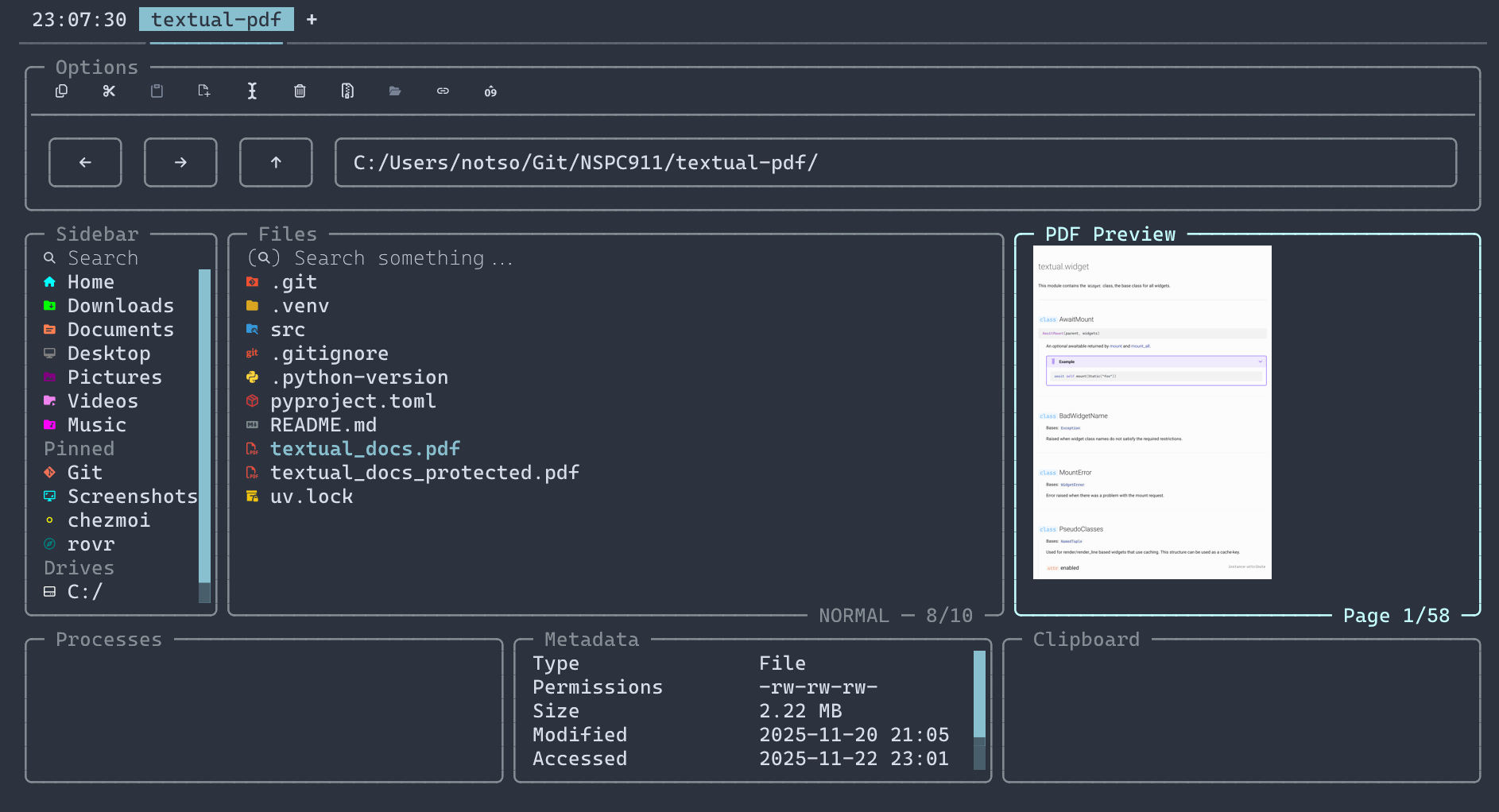
for pdf files, rovr makes use of poppler . you can also scroll through the pdf with your mouse (scrollbars are unavailable for now) or use your keyboard to navigate it.
rovr makes use of resvg-py to render svg files, so you don’t need resvg installed on your system — it automatically previews the svg file for you without any setup
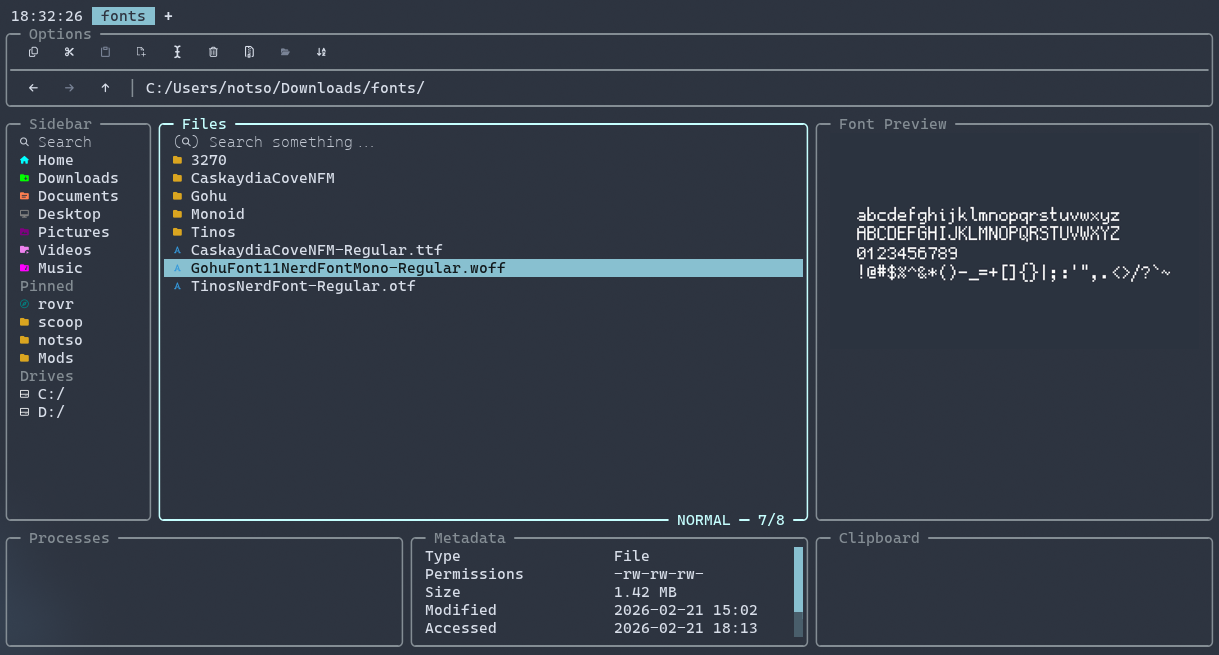
for font files (like .ttf, .otf), rovr will display a preview of the font. you can customise the text used in the preview if you want to test extra things